How to put a vocal on an instrumental online, step by step
To put a vocal on an instrumental online, open Vocal on instrumental in Magic Master, upload the vocal and the instrumental, and the server lines them up in time, cleans the voice according to the boxes you tick, and mixes everything with mastering for the platform you choose. Nothing to install or set up by hand: you need two files and a few minutes.
What you need
- The vocal: a separate file with the voice and no music.
- The instrumental: the backing track of the same song. If you do not have one, take it from your own instrumental: split the song into stems in Magic Master, and the instrumental appears in the list.
- Length: each track up to 8 minutes.
Step by step
- Open the tool. The Vocal on instrumental screen is inside the app.
- Upload the vocal into the first zone. Put the instrumental in the second: your own file or a track from your instrumentals.
- Tick what to clean: noise, hiss, a steadier level, a light echo. Each box changes only the voice. You can leave them all unticked, and the voice will go through as it is.
- Set the balance. The voice can sit quieter or louder than the instrumental, anywhere from −12 to +12 dB. Start at zero and move the slider until the voice sits right.
- Start the mix with the "Mix and master" button. The mix runs in the background, the panel shows each stage, and you do not need to refresh the page.
- Listen to the result. The "Before mastering" switch plays the mix without the final processing, and "After mastering" plays the finished version.
- Download the WAV in 24-bit.

What the server does
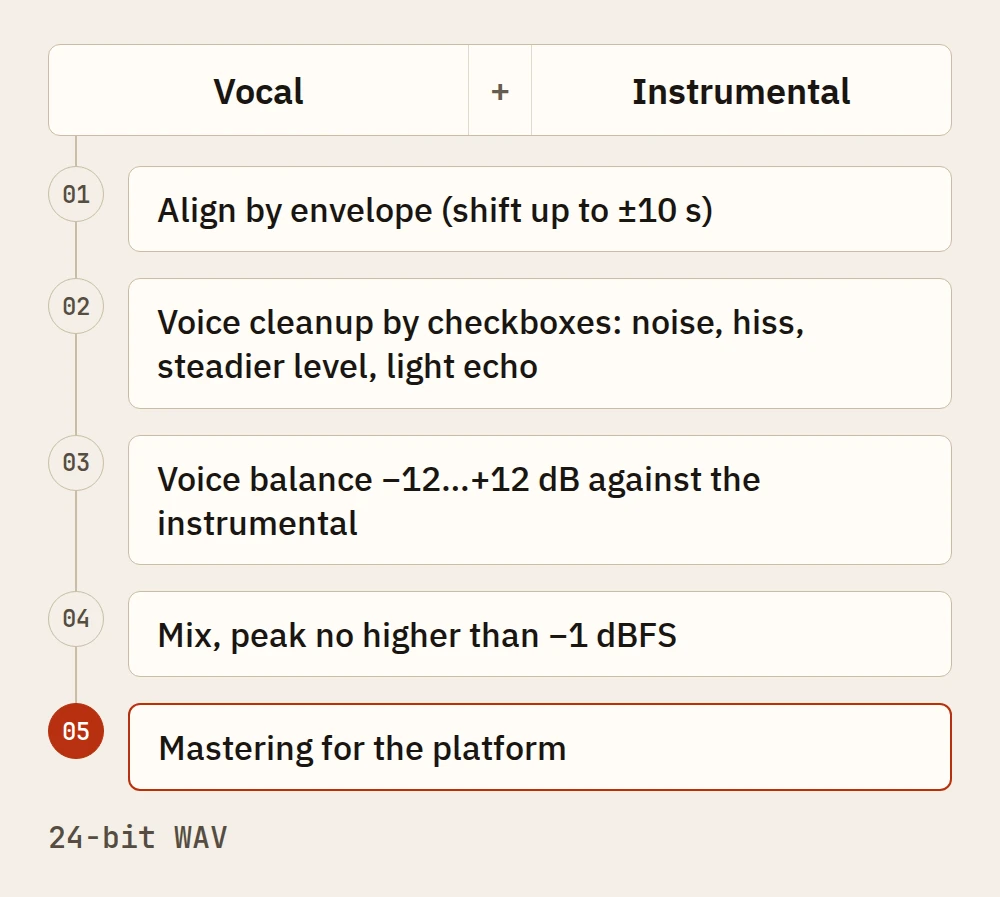
- Alignment. The server compares the loudness envelopes of the vocal and the instrumental and, if needed, shifts the voice by no more than 10 seconds. If the match is weak, it does not shift, and the app says so.
- Voice cleanup. Only what you ticked: noise, hiss, a steadier level, a light echo.
- Mix with clip protection. The voice and the instrumental are summed so that the peaks stay at or below −1 dBFS and the sum does not distort.
- Mastering. The result goes through the usual processing for the platform you chose.
Preview and tokens
- The 30-second preview is free, within the daily quota. Check the balance and the cleanup on it before you spend tokens.
- The full track is mixed in your account for tokens. The token is charged when the job starts. If the job fails through our fault, the token comes back the same way it does for mastering.
- Plans and prices are on the pricing page.
How to tell if it worked
Listen on headphones and on speakers, switching between "Before" and "After". If the voice sounds dull, untick a box and compare again: cleanup is not always needed. If the voice gets lost in the instrumental, move the balance. The same track sounds different at different balances, so do not settle on the first version you hear.
What next
- Need an instrumental? The free vocal remover splits a song into voice and instrumental.
- Need the instrumental in another key? The key changer does not change the tempo.
- How the split into tracks works is explained in How to split a song into stems.
Questions and answers
What is free and what costs tokens?
A 30-second preview is free, within the daily quota, so you can check the balance and the cleanup before you spend tokens. The full track is mixed in your account for tokens. A token is charged when the job starts and comes back if the job fails through our fault.
Is there a length limit?
Yes. Each track, the vocal and the instrumental, must be no longer than 8 minutes.
What do I get back?
A 24-bit WAV. You can download the full file and send it to a platform after checking it in the app.
Upload a track — the same mastering engine, prices in euros.
Open Echoteka →AI mastering onlineLUFS analyzer