Free AI cover for your track: sizes for clip and release
A track cover is needed twice: as the picture for a release and as the background of a video. In Magic Master you can draw an AI cover for free inside the Track video tool. Below: how it works, which sizes you need, and why a frame from the clip does not replace a cover for a distributor.
What the AI cover does
- Two variants per request. You pick one, and it becomes the background of the clip.
- The clip's format. The picture is drawn in the format you chose for the clip: 1:1, 9:16 or 16:9.
- No text in the picture. The model does not draw lettering. The app puts the title and the artist on the frame, so they stay clear.
- A wish. You can add a short hint, such as "night city, neon". The field takes about 120 characters.
- Limits. The AI cover does not depict real people or celebrities. Adult content and violence are not allowed.
- Sign-in and daily limit. You generate covers only from a signed-in account. The number per day is limited, and the tool shows what is left.
- If it fails. The app says so, and no tokens are charged.
How to download the cover
Pick the variant you like and a Download cover button appears under the cards. The file is a PNG with no lettering: the app draws the title and artist only on the video frames. The picture is about 1000 px (1024×1024 for a square), which is enough for a post, a thumbnail or a story. A frame from a finished video is not suitable for a release: it carries the title, the artist and the magicmaster.pro line in the corner.
Sizes: what you need and where
| Where the picture is used | Size | Note |
|---|---|---|
| Release cover for a distributor | 3000×3000 px | Square, JPG or PNG, RGB. The target most distributors ask for |
| Vertical clip: Reels, Shorts, TikTok, VK Clips | 1080×1920 px | The video size from Track video |
| Square post | 1080×1080 px | Video in 1:1 |
| Horizontal clip: YouTube | 1920×1080 px | Video in 16:9 |
The video sizes are the ones the app produces. For a release cover, the target is a 3000×3000 pixel square. Platform minimums differ and change, so check your distributor's help page before you upload.
A more common reason for rejection than size is what the picture contains: links, platform logos and promotional text. Keep the cover clean.
Six steps to make a cover
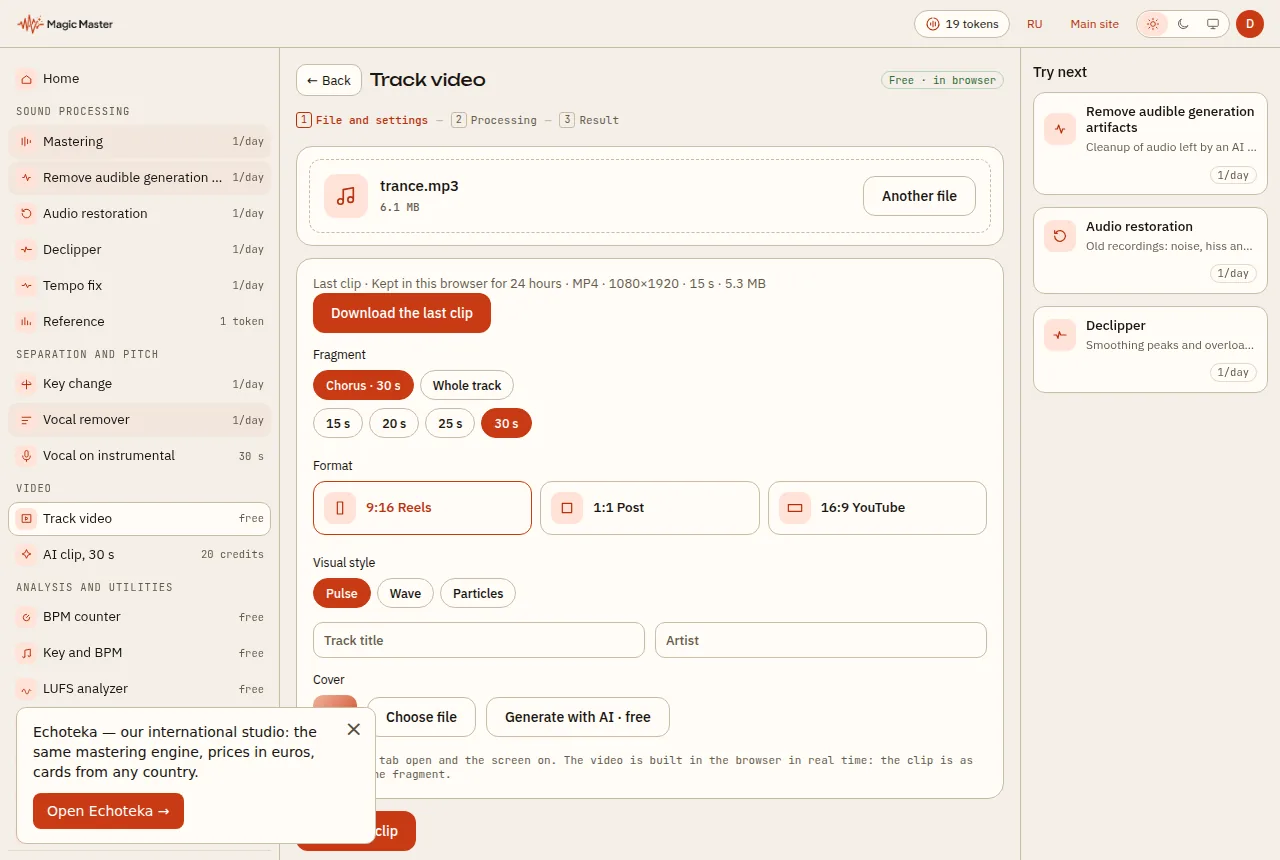
- Open Track video and choose your track.
- Choose a format. Pick 1:1 for a square cover or a post, and 9:16 for a vertical clip.
- Type the title and the artist: they will appear on the frame.
- Sign in and press "Generate with AI". You can leave the wish empty.
- Look at the two variants. If neither fits, press "More variants".
- The chosen variant becomes the clip cover. Build the clip and download the video, and save the picture with Download cover.
A cover for the release
Uploading to platforms needs a bigger picture: a 3000×3000 px square, RGB, JPG or PNG, with no links or promo text. The AI cover from the clip is about 1000 px, so for a release use it as an idea or a sketch and prepare a file of the right size separately, without stretching the picture three times: on a platform that shows. If your track was made with an AI model, check the platform rules on labelling before release: AI label before release gathers them in one checklist.
Tips for the picture
- One image. A single strong object reads better than a busy scene. Small text on a small picture is hard to read.
- A wish that fits the genre. For lo-fi, "vinyl, warm light" works. For electronic music, "neon, rain". For rap, "night courtyard, street lamps". Words set the mood rather than a precise drawing.
- A quick check. Look at the picture on a phone. If the main image reads at a small size, it will work in a feed.
How to write the wish
The wish is a short hint for the picture, not the song's lyrics. Three things work well: a place ("a night courtyard"), light or weather ("neon, rain", "morning fog") and one detail ("an old tape recorder"). Long lists give a less coherent picture, so two or three ideas are better. Names and faces are not needed: the AI cover does not depict real people or celebrities, and the app will not accept such a wish.
If the result does not match, try a different word for the mood. The same idea phrased differently gives different variants.
How to choose a variant
Two variants are two attempts at one idea. If neither fits, change the wish or press "More variants". Each request uses one generation from the daily limit, and the "Left today" line goes down by one. The chosen variant is marked with a frame, and you can switch it before you build the clip.
The cover and the clip together
The cover becomes the background of the clip. In the Pulse style it beats on the downbeats, in Wave it sits in the centre of a circular spectrum, and in Particles sparks fly around it. The title and the artist are drawn on top, so pick a picture with a calm area for text. For a vertical 9:16 clip, a central subject works best, because the edges of the frame can be covered by the phone's interface.
If you like the picture but have not built the clip yet, nothing is lost: the variant stays selected, and you can build the clip at any moment.
What next
Make a cover for your video. Open Track video, choose the 9:16 format, type the title and press "Generate with AI". For the release cover, use a separate 3000×3000 px square.
Questions and answers
Is the AI cover free?
For now generation is free, but you need to be signed in. The number of generations per day is limited, and the remaining count is shown in the tool.
Can I download the picture as a separate file?
Yes. Pick a variant and press Download cover: you get a PNG of about 1000 px with no lettering. It works for a post, a thumbnail or a story. For a release, distributors usually ask for a 3000×3000 square.
What size does a release need?
Most distributors ask for a 3000×3000 px square, JPG or PNG, RGB colour. Minimums differ between platforms, so check your distributor's help page.
Will the AI write a title on the cover?
No. The image model draws no text. The app adds the title and the artist to the frame, so they stay sharp and readable.
Can it draw a real person?
No. The AI cover does not depict real people or celebrities. Adult content and violence are not allowed either.
Upload a track — the same mastering engine, prices in euros.
Open Echoteka →AI mastering onlineLUFS analyzer