Free track video: make a clip for Reels and Shorts
You can make a video for your song for Reels, Shorts or TikTok without a video editor. Track video in Magic Master builds the clip right in the browser: you choose a fragment, a format and a style, optionally add a title and a cover, and download an MP4 or WebM file. The tool is free and needs no sign-up. Your track never leaves your device: the audio is read and drawn on your screen.
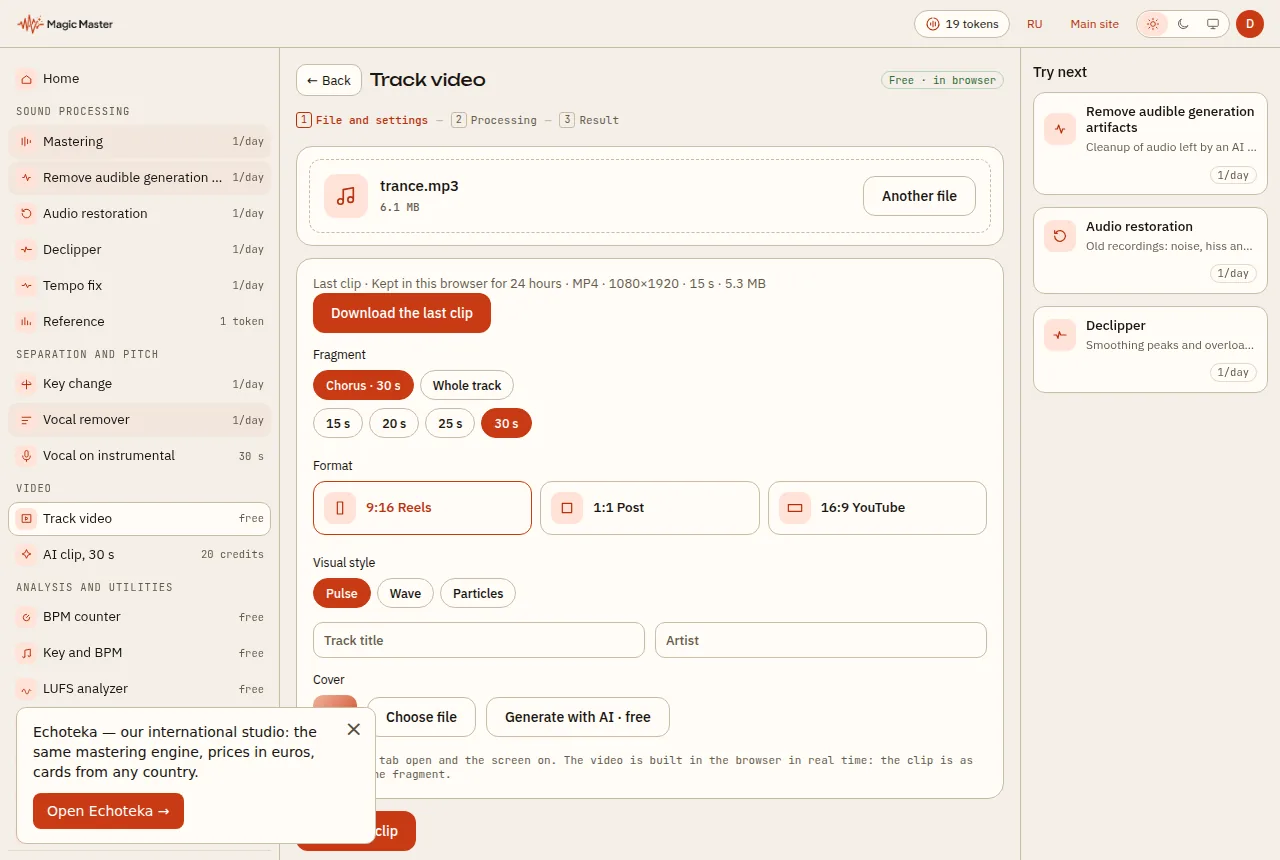
One thing to know up front. This is a visualizer. The frame pulses to the beat, but there is no story and no actors. If you want a story, that is a separate tool, covered below.
What you get
- Three formats. 9:16 (1080×1920) for Reels, Shorts, TikTok and VK Clips. 1:1 (1080×1080) for a square post. 16:9 (1920×1080) for YouTube.
- Three styles. Pulse: the cover beats on the downbeats. Wave: a circular spectrum around the cover. Particles: sparks fly out on every hit.
- Fragment. By default the app finds the most energetic part of the track, usually the chorus, and cuts 15, 20, 25 or 30 seconds from it. You can also pick the whole track, up to 10 minutes long.
- Title and artist are drawn over the frame. You can upload your own cover or generate one with AI, which needs a signed-in account.
- File. An MP4 with H.264 video when your browser can record it. Otherwise the result is WebM.
- Watermark. A small magicmaster.pro line sits in the corner.
How to make a clip in six steps
- Open Track video in the Magic Master app.
- Choose a track: WAV, MP3, FLAC or M4A. The app reads the file and shows its length and tempo in BPM.
- Choose a fragment: "Chorus" with the length you want, or "Whole track".
- Choose a format. For Reels, Shorts, TikTok and VK Clips, pick 9:16.
- Choose a style. Optionally type a title and an artist, then upload a cover or generate one.
- Press "Build the clip", wait for the recording to finish, and download the file with the button under the player.
How the fragment is picked
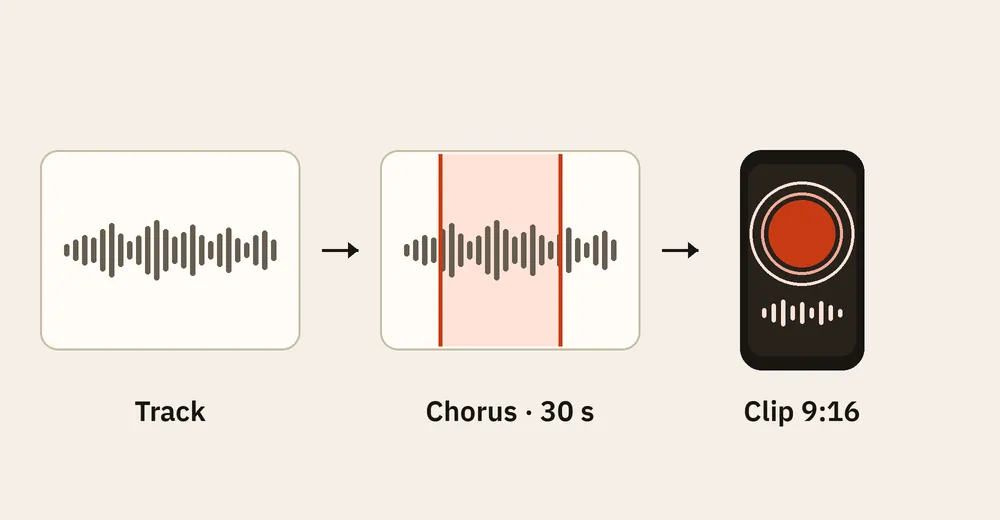
The app analyses the track and looks for the spot with the highest loudness and the densest beats. That is the "Chorus" option. A "Fragment" line with the start and end times appears next to the track info, so you can see which part was taken. If it is not the part you want, trim the song in the audio cutter, save that piece, and load it into Track video as a separate file.
For Reels and Shorts, a 15–30 second excerpt works best: a short clip is easier to hold attention with than a whole song.
Why the video is recorded in real time
The video is recorded while it plays. Its length equals the length of the fragment: a 30-second fragment takes 30 seconds to build, and a three-minute track takes three minutes. So keep the tab open and the screen on. If you switch away from the tab during recording, the build stops and the app tells you so.
After a build, the last clip stays in this browser for 24 hours. Download it straight away, because a page reload removes it.
Tips for Reels, Shorts and TikTok
- Format. The same track can be built twice: 9:16 for vertical video and 16:9 for YouTube. A 1:1 square fits a feed post.
- File type. Chrome and Safari save MP4. If a platform does not accept WebM, open the page in one of those browsers.
- Loudness. The clip uses your file as it is. If the track is not yet mastered for the platform, master it first: the mastering guide for TikTok explains which loudness to aim for.
- Cover. Without a cover, the clip uses a gradient with the title. That is fine for a first video.
Before you publish
Open the finished file and check four things. The length matches the fragment you chose. The title is readable over the background. The magicmaster.pro line is in the corner. The sound does not cut off at the end. If something is off, build the clip again: it takes as long as the fragment lasts.
When you need a story
Track video does not tell a story. If you want a hero, scenes and an edit based on the lyrics, try the 30-second AI clip. It is a paid option, charged in tokens: the app first suggests ideas, you edit the storyboard, and only then do you confirm the order. The guide to the 30-second AI clip explains how it works.
If you need an instrumental for the video and do not have one, vocal on instrumental shows how to mix a vocal with a backing track in one go.
What you need before you start
You need a track and a browser. Chrome, Yandex Browser or Safari 15 and newer work, on a computer or a phone. If the browser cannot record video, the app says so and suggests which browser to open. No sign-up is needed, and nothing has to be installed.
You can upload a track as WAV, MP3, FLAC or M4A. If it is longer than 10 minutes, you cannot choose the whole track: the app suggests the chorus instead.
What the app does while you wait
After the upload the app analyses the track: it measures the loudness and finds the beats and the tempo in BPM. The frames are tied to the beats, so the pulse lands on the rhythm. During a build the status shows three stages: beat analysis, video recording with a countdown such as "6 of 30 s", and saving the file.
If the sound does not start, the app asks you to press "Build the clip" again. If the browser saves an empty file, the app suggests building it once more. Both cases are fixed by a repeat build; you do not need to change any settings.
What next
Make your first video. Open Track video, choose the chorus of your track and the 9:16 format. If the track is still raw, check mastering too: it works within the free daily quota and beyond that for tokens.
Questions and answers
Is Track video free?
Yes. The video is built in your browser, no tokens are charged and no sign-up is needed. The AI cover is a separate option: it needs a signed-in account and is free at the moment.
Is my track uploaded to a server?
No. The file is read and drawn in your browser, and the video is recorded there too. Only the text fields go to the server, and only if you generate an AI cover.
Why is there no MP4 download?
MP4 is recorded in Chrome and Safari. In other browsers the video is saved as WebM, which most players and editors open.
How long is the video?
The same as the fragment you chose: 15, 20, 25 or 30 seconds. A whole track, up to 10 minutes, is also recorded in real time.
Is there a watermark?
Yes, a small magicmaster.pro line sits in the corner of the frame. The app adds no other marks.
Upload a track — the same mastering engine, prices in euros.
Open Echoteka →AI mastering onlineLUFS analyzer